


To receive SMS online with your own number, you pair your phone with the computer: Phone Link on Windows, Google Messages for web in any browser, or text forwarding from iPhone to Mac. The phone still does the receiving. No website can pick up texts sent to your number. If you only need a sign-up code and do not want to use your number, a separate temporary number works in the browser.
Your own texts on a computer: phone pairing and web messages
| Tool | What you need | |
|---|---|---|
| Android to Windows PC | Phone Link | Messages permission on the phone; shows texts from the last 30 days |
| Android to any browser | Google Messages for web | The same Google Account on phone and browser; one computer active at a time |
| iPhone to Mac | Text Message Forwarding or Messages in iCloud | The same Apple Account; iPhone switched on and online |
| iPhone to Windows PC | Phone Link | A Bluetooth connection; history disappears when it ends |
Per the Microsoft, Google and Apple help pages, October 2026.
- Android: pair Google Messages In Google Messages, open your account menu and tap Device Pairing. Open Messages for web on the computer, sign in with the same Google Account and tap the matching emoji on the phone.
- iPhone: switch on forwarding Go to Settings → Apps → Messages → Text Message Forwarding and turn on your Mac. If the option is missing, turn iMessage off and on again.
- Windows: open Phone Link Link the phone once, then select Messages. New texts appear on the PC as they reach the phone.
Why no website can receive texts sent to your number
An SMS travels through your mobile network to the SIM or eSIM that holds your number. Only that phone receives it. A website has no access to your network, so it cannot read what arrives there.
Every working way to see your own texts on a computer copies them from the phone, which is why each tool above needs pairing first. With Google Messages for web, texts you send also go out through your phone's connection.
A separate number for a sign-up code
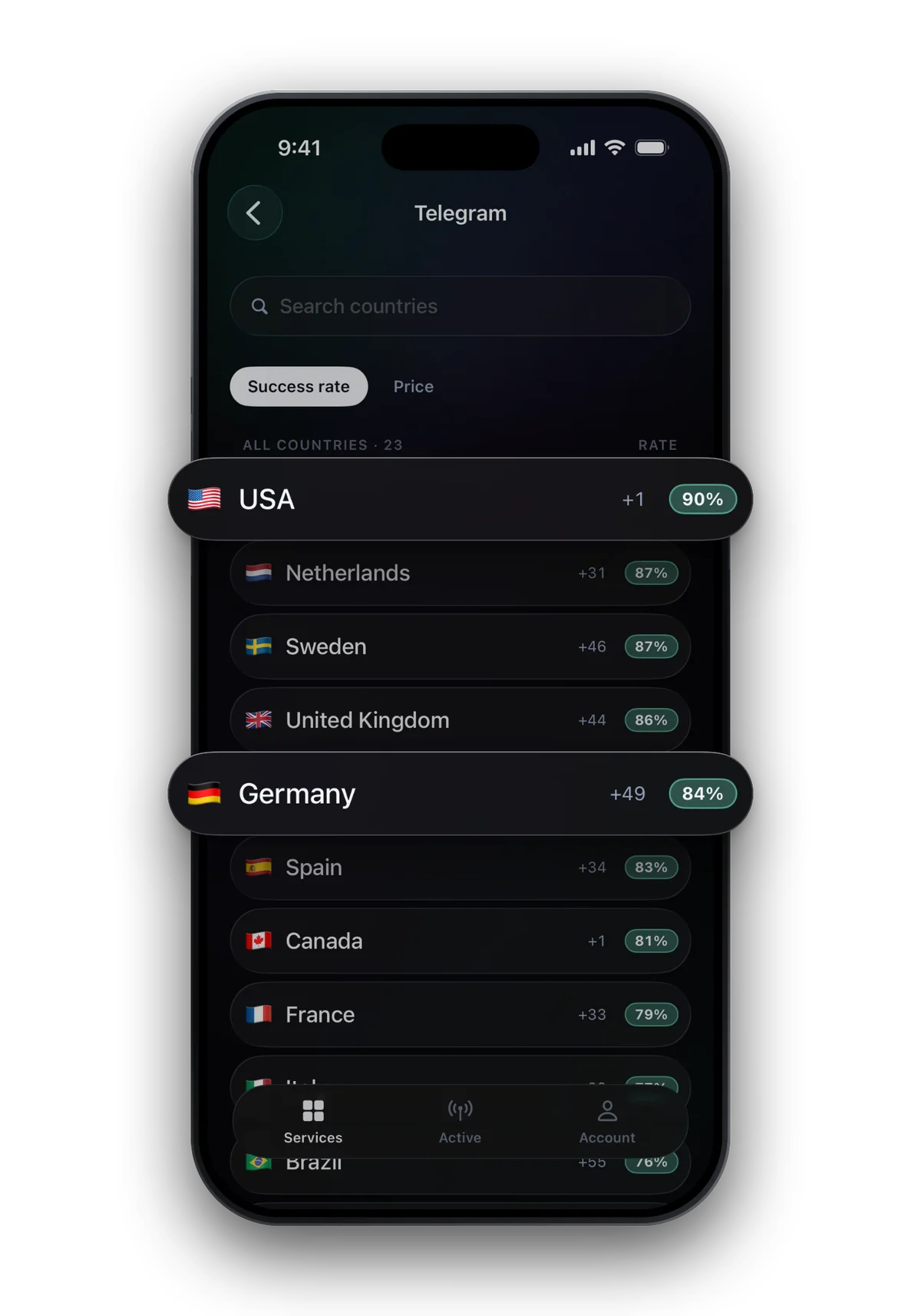
Often the real goal is narrower: a service wants a code, your phone is not at hand, or you would rather not give it your personal number. For that one code, a separate number you open on the computer is enough.
- Open the web app in your browser. No sign-up.
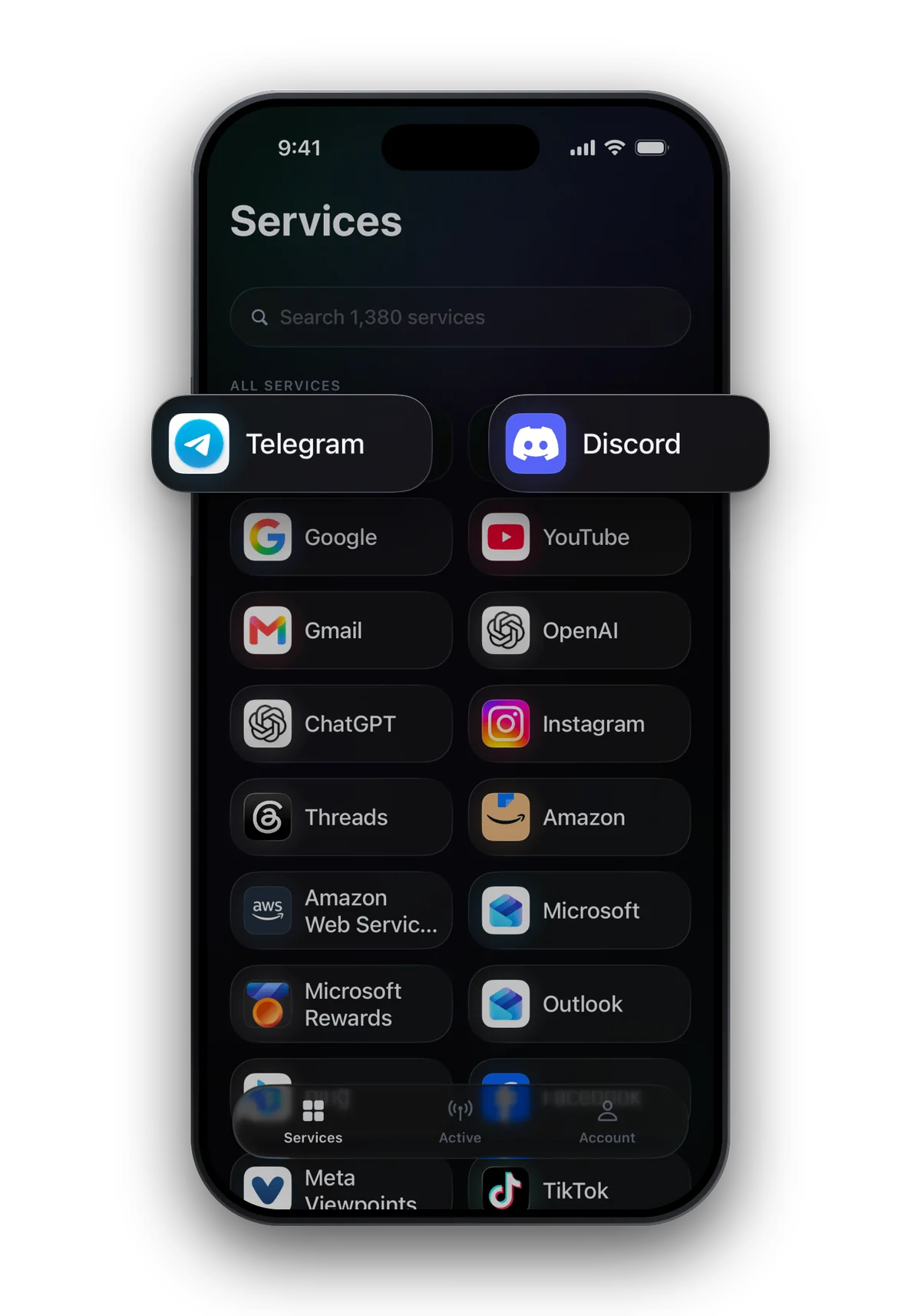
- Pick the service, then a country, and see the price and success rate before you pay.
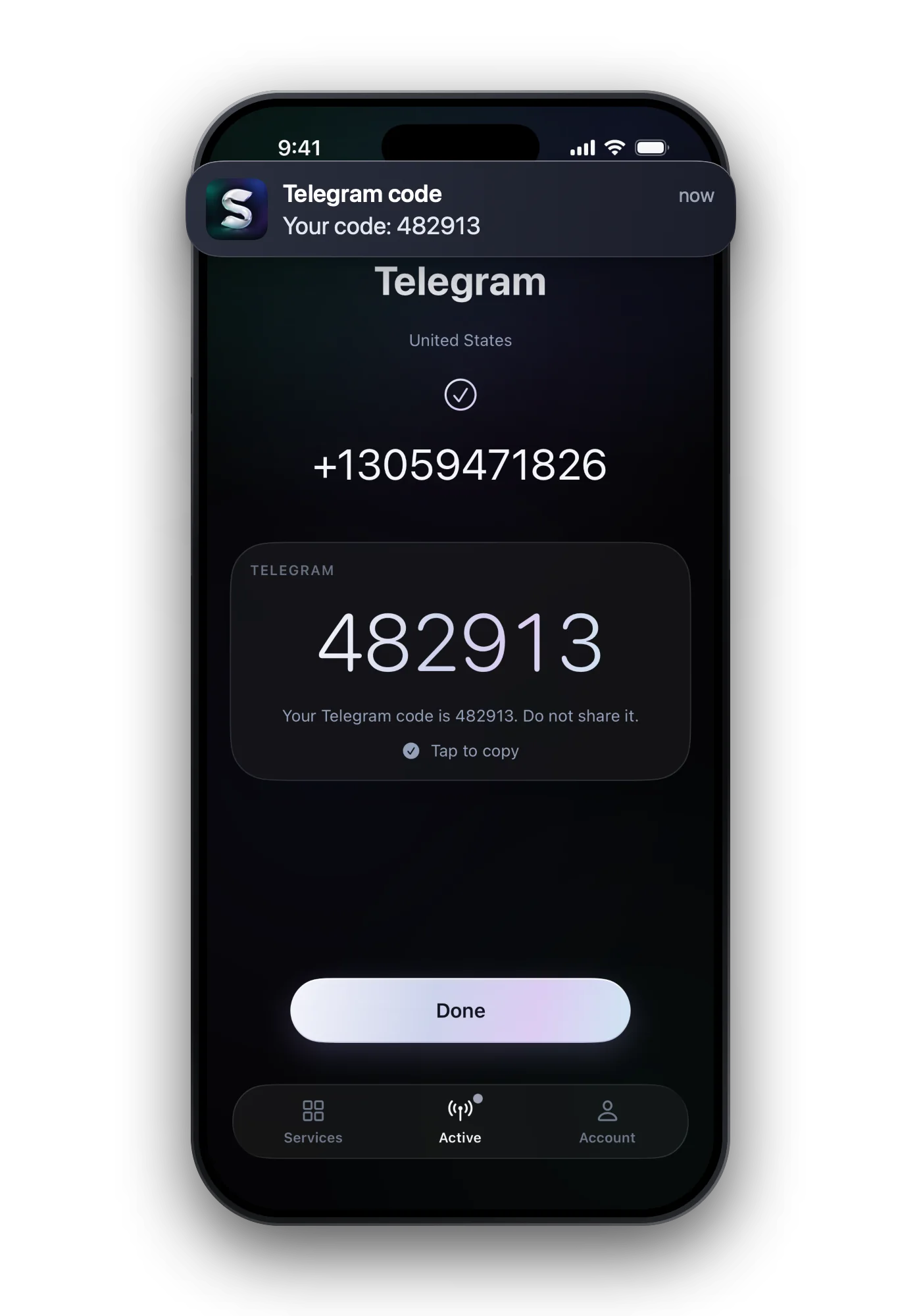
- Enter the number in the service. The code appears on the same screen.
- No code after about two minutes? Take another number for free, or get your money back.
These numbers only receive, and they close after one code. They are not a second line for chatting or calls. More on how they work: receive SMS online.
Common questions
Can I receive SMS on my PC without my phone?
Not for your own number. Every pairing tool copies texts from the phone, and an iPhone has to be on and online to forward them. Without the phone, only a separate number works.
Can I get SMS online with my own number on a website?
No. Texts to your number reach only the SIM or eSIM that holds it. Websites that claim otherwise cannot deliver it.
Does Phone Link work with an iPhone?
Yes, over Bluetooth. Microsoft notes that the iPhone version cannot send or receive images and GIFs, and the history disappears when the Bluetooth connection ends.
Can I receive a verification code on my computer without a SIM card?
Yes, with a temporary number that you open in the browser. It receives one code for one service and then closes.
How many old texts can I see in Phone Link?
With Android, texts sent or received in the last 30 days. Older ones stay on the phone.